If iPhone Screen Time App Limits are not working, first confirm that App & Website Activity is enabled, check that you selected the correct apps, lock the settings with a Screen Time passcode, and turn on the available blocking options. If the settings are correct but you continue pressing “Ignore Limit,” Screen Time may be working as designed—the system may simply be too easy for you to override.
You set a 30-minute limit for TikTok.
Thirty minutes later, your iPhone presents a warning. You tap “Ignore Limit,” promise yourself that you only need a few more minutes, and continue scrolling. You don't realize how much time has passed until another hour is gone.
That feels like Screen Time is not working. Sometimes it genuinely is not. A setting may be disabled, the wrong app may be selected, or the limit may not be syncing correctly.
But there is another possibility: Screen Time is working exactly as configured. The limit is warning you rather than stopping you.
Apple states that Screen Time limits can be ignored by default once they are reached.1 That distinction matters because a technical problem and an easy-to-bypass limit require different fixes.
Use the table below to identify which one you have.
Diagnose the problem in 60 seconds
| What happens | Likely cause | Check first |
|---|---|---|
| “Ignore Limit” still appears | The limit is acting as a reminder | Passcode settingsBlocking settings |
| You receive a warning but the app remains available | Blocking is not enabled | App Limit and Downtime settings |
| One app is never restricted | The wrong app or category was selected | App Limits selection |
| The app works during Downtime | It may be in Always Allowed | Always Allowed list |
| Limits activate at the wrong time | The schedule, date, or time zone may be incorrect | Date & Time settings |
| Usage looks much higher than expected | Other Apple devices may be included | Share Across Devices |
| The app is blocked but its website still opens | The website was not restricted | Web Content settings |
| The limit disappears or stops applying | A sync or software issue may be involved | Restart, update, and recreate |
| You know the passcode and change the rule | The setup still depends on your cooperation | Trusted passcode or stronger boundary |
- What happens
- “Ignore Limit” still appears
- Likely cause
- The limit is acting as a reminder
- Check first
- Passcode settingsBlocking settings
- What happens
- You receive a warning but the app remains available
- Likely cause
- Blocking is not enabled
- Check first
- App Limit and Downtime settings
- What happens
- One app is never restricted
- Likely cause
- The wrong app or category was selected
- Check first
- App Limits selection
- What happens
- The app works during Downtime
- Likely cause
- It may be in Always Allowed
- Check first
- Always Allowed list
- What happens
- Limits activate at the wrong time
- Likely cause
- The schedule, date, or time zone may be incorrect
- Check first
- Date & Time settings
- What happens
- Usage looks much higher than expected
- Likely cause
- Other Apple devices may be included
- Check first
- Share Across Devices
- What happens
- The app is blocked but its website still opens
- Likely cause
- The website was not restricted
- Check first
- Web Content settings
- What happens
- The limit disappears or stops applying
- Likely cause
- A sync or software issue may be involved
- Check first
- Restart, update, and recreate
- What happens
- You know the passcode and change the rule
- Likely cause
- The setup still depends on your cooperation
- Check first
- Trusted passcode or stronger boundary
1. Make sure App & Website Activity is enabled
App Limits cannot work if the system that powers them is turned off.
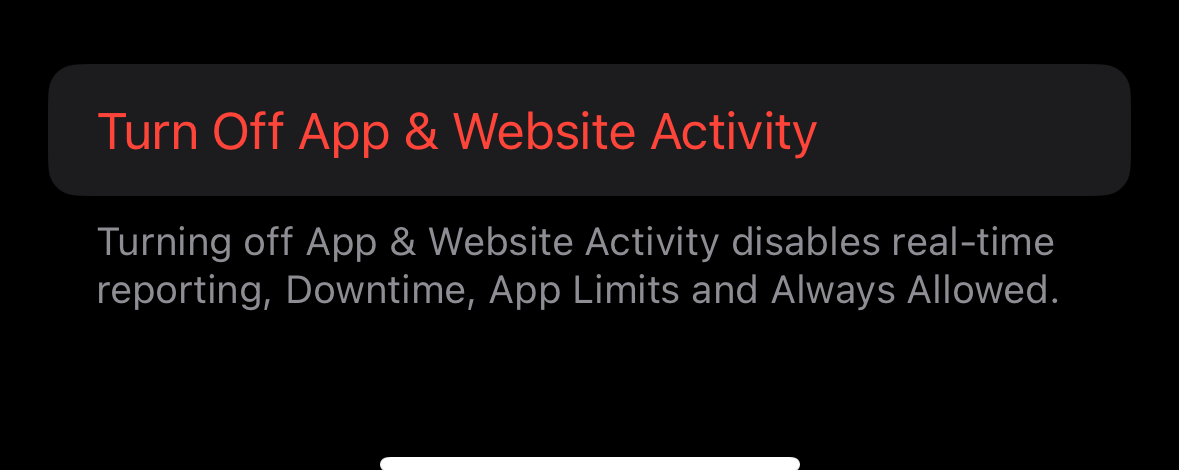
Go to: SettingsScreen TimeApp & Website Activity
If it is disabled, turn it on. Apple explains that turning off App & Website Activity also turns off Screen Time reporting, Downtime, App Limits, and Always Allowed.2
After enabling it, create a one-minute test limit:
- Open Settings.
- Tap Screen Time.
- Tap App Limits.
- Tap Add Limit.
- Select one app.
- Set the limit to one minute.
- Use the app and confirm that the warning appears.
If it does, Screen Time is running. You can now determine whether the problem is the selected apps, the blocking configuration, or the ease of overriding the warning.
2. Check that you selected the correct app or category
An App Limit only applies to what you selected.
This sounds obvious until one app appears under an unexpected category, you replace an app with a newer version, or you limit “Social” while the service you use is classified somewhere else.
Open: SettingsScreen TimeApp Limits
Tap the affected limit and check the apps included. If you want to restrict one particular app, select it individually instead of relying on a broad category.
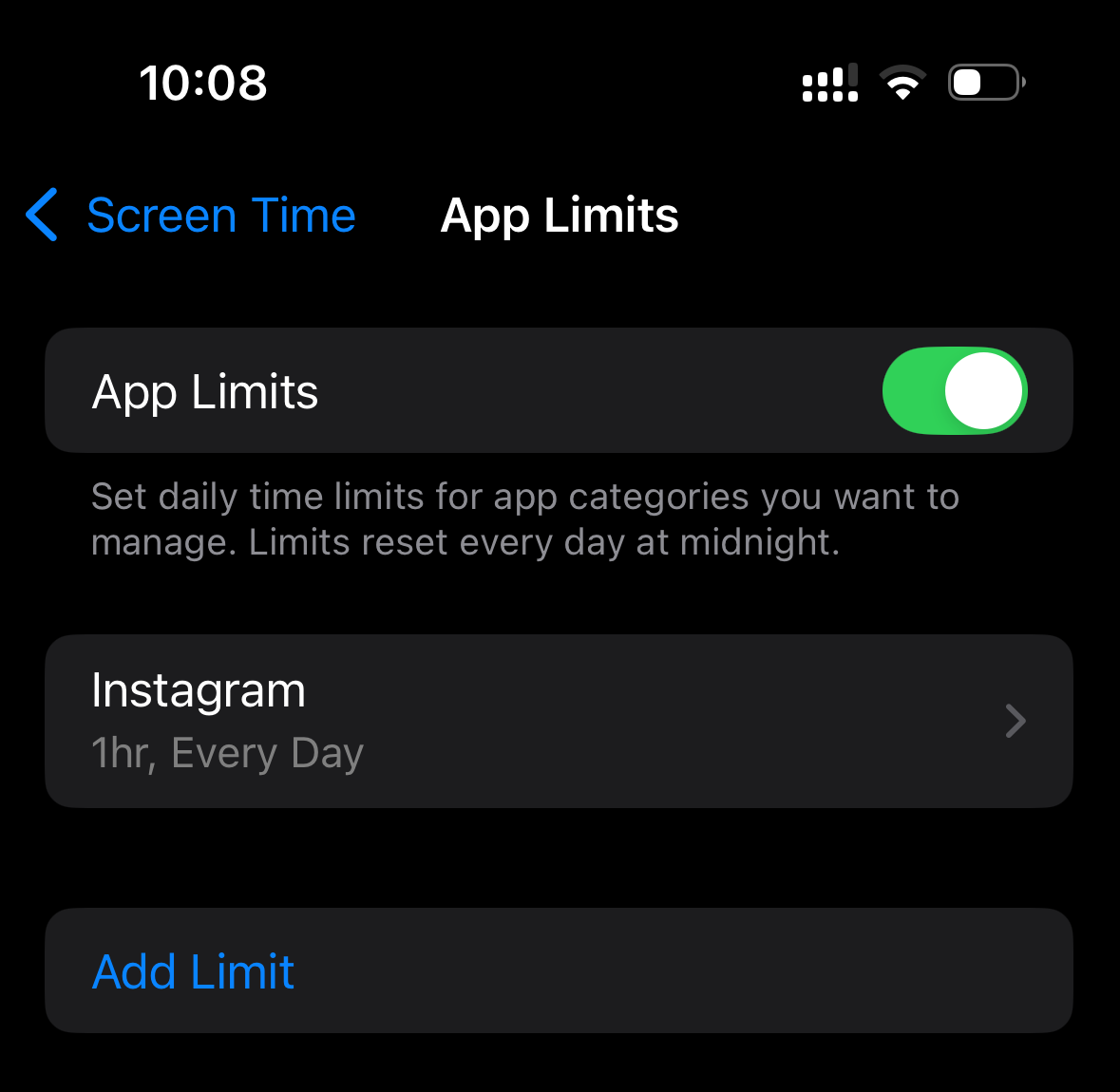
Be especially careful when several apps share one limit. A 30-minute limit for a group is normally shared across the selected apps; it is not necessarily 30 minutes for every app in that group.
Also check the schedule for each day. If you customized Monday through Friday but left the weekend unchanged, the difference may look like a broken limit when it is actually following the schedule you created.
3. Lock Screen Time settings with a separate passcode
A limit is not much of a limit if changing it requires the same code you already enter all day.
SettingsScreen TimeLock Screen Time Settings
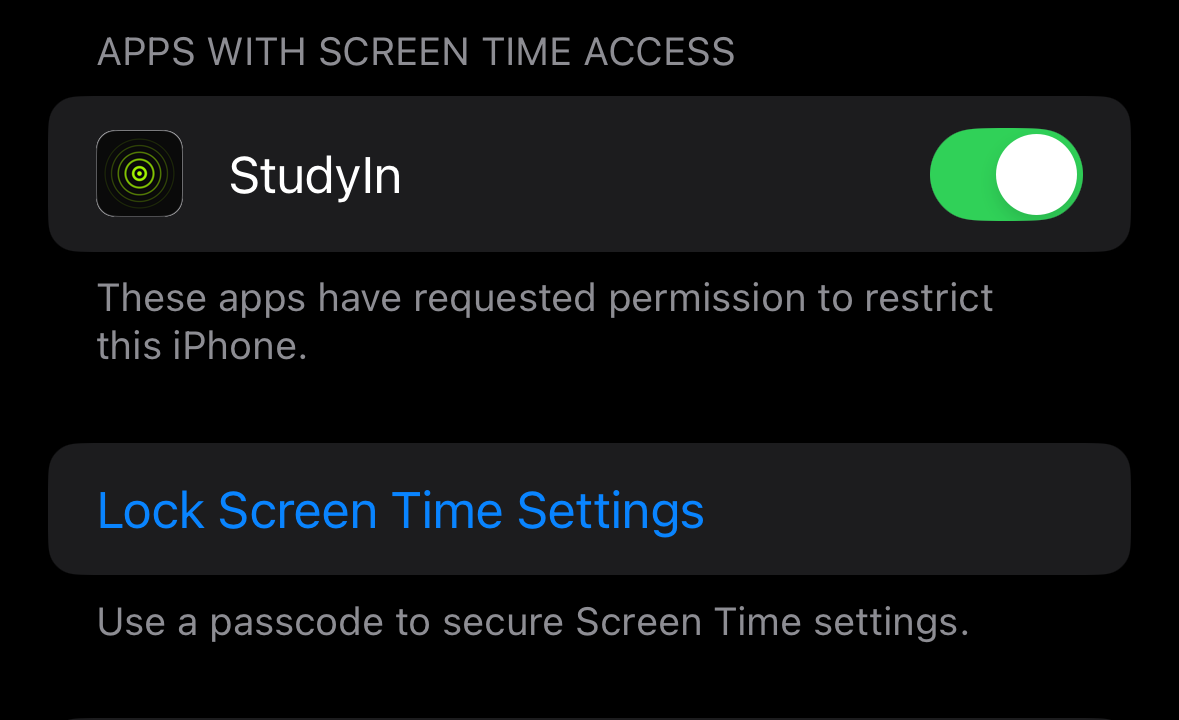
To create a Screen Time passcode for yourself:
- Open Settings.
- Tap Screen Time.
- Scroll down and tap Lock Screen Time Settings.
- Enter a four-digit passcode.
- Enter it again to confirm.3
The Screen Time passcode protects the settings and controls requests for additional time. It is separate from the passcode used to unlock your iPhone.
If you are setting the limit for yourself, there is still an obvious weakness: you know the code.
If a parent manages the settings through Family Sharing, they should use a passcode the student does not already know. Apple also provides a recovery process if the Screen Time passcode is forgotten.4
4. Turn on the available blocking options
Screen Time can either remind you that a boundary has arrived or enforce that boundary more strictly.
For App Limits: SettingsScreen TimeApp LimitsAffected limit
For App Limits, open the affected limit and look for a setting such as Block at End of Limit. If it appears on your current version of iOS, turn it on. Apple occasionally changes the exact labels and placement of Screen Time controls, so confirm the wording on your device.
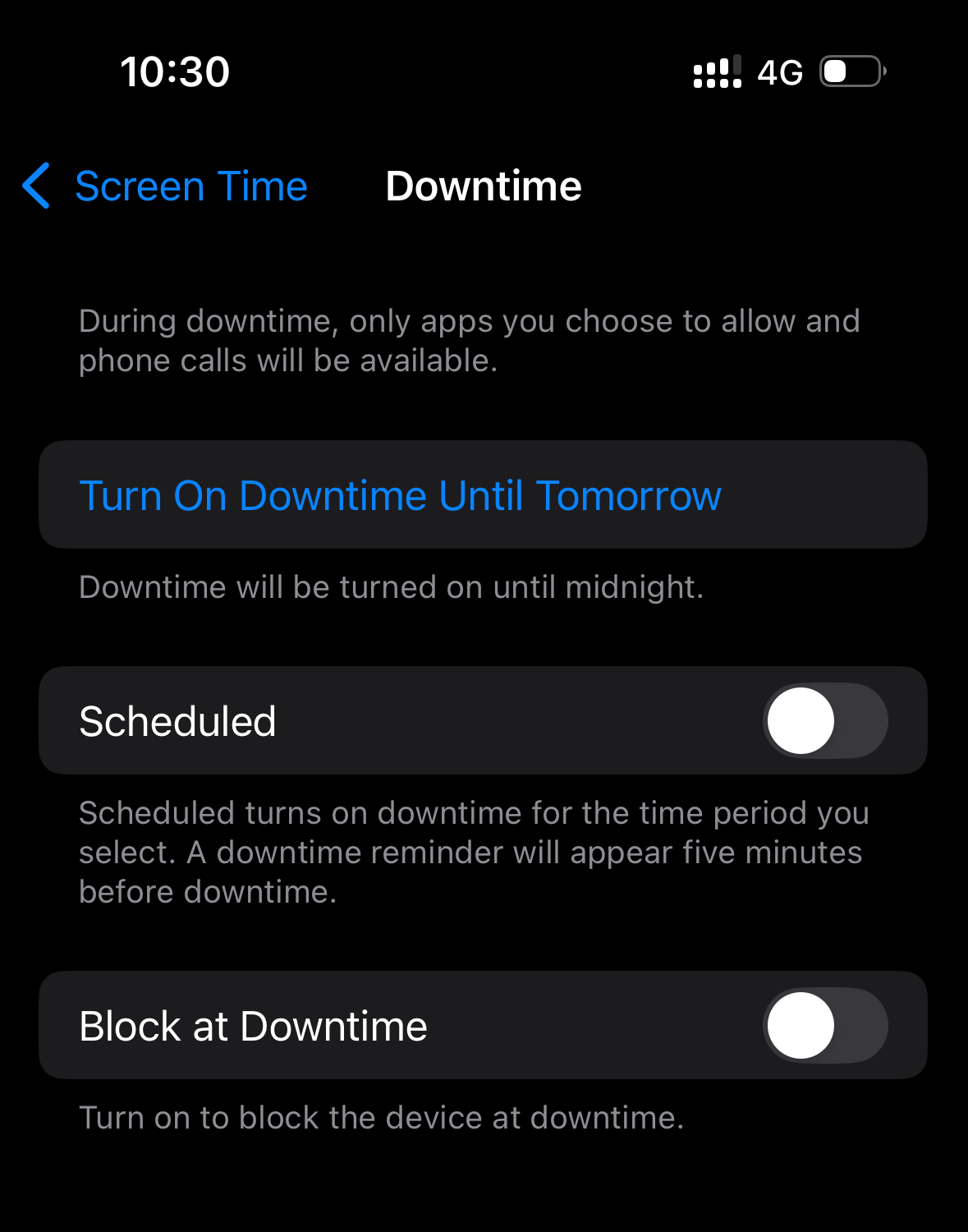
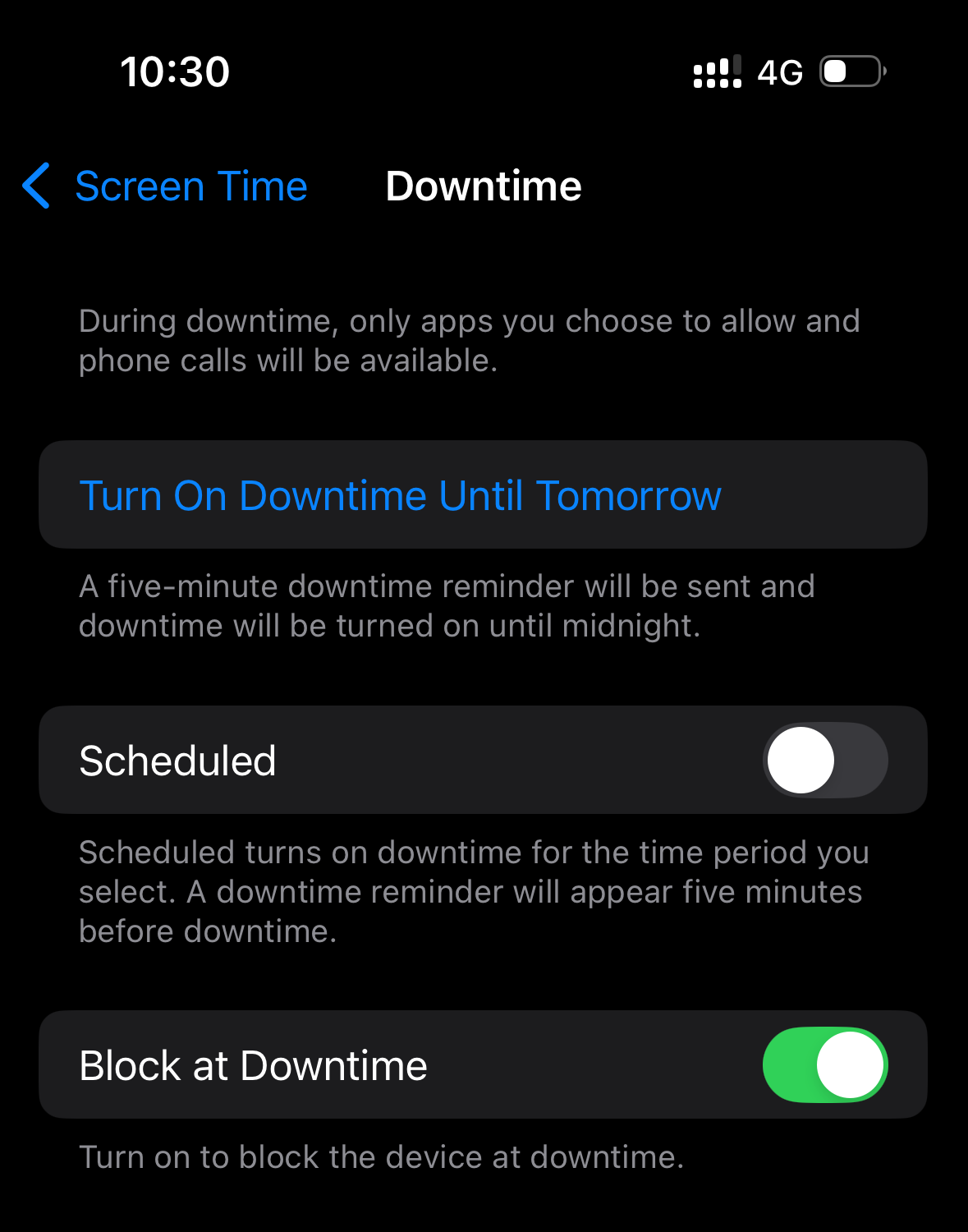
For a scheduled study period, Downtime provides a clearer route:
- Open Settings.
- Tap Screen Time.
- Tap Downtime.
- Create the schedule you want.
- Turn on Block at Downtime.
Apple explains that when Block at Downtime is on, restricted apps appear dimmed with an hourglass and cannot be opened normally. When it is off, Downtime presents a reminder that can be ignored.1
Blocking off
Blocking on
This makes App Limits and Downtime useful for different jobs:
| Use | Better starting point |
|---|---|
| Limit total daily social-media use | App Limits |
| Block distractions during a fixed study period | Downtime |
| Keep a small group of essential apps available | Downtime with Always Allowed |
| Reduce automatic opening without a full block | A reminder or friction-based blocker |
- Use
- Limit total daily social-media use
- Better starting point
- App Limits
- Use
- Block distractions during a fixed study period
- Better starting point
- Downtime
- Use
- Keep a small group of essential apps available
- Better starting point
- Downtime with Always Allowed
- Use
- Reduce automatic opening without a full block
- Better starting point
- A reminder or friction-based blocker
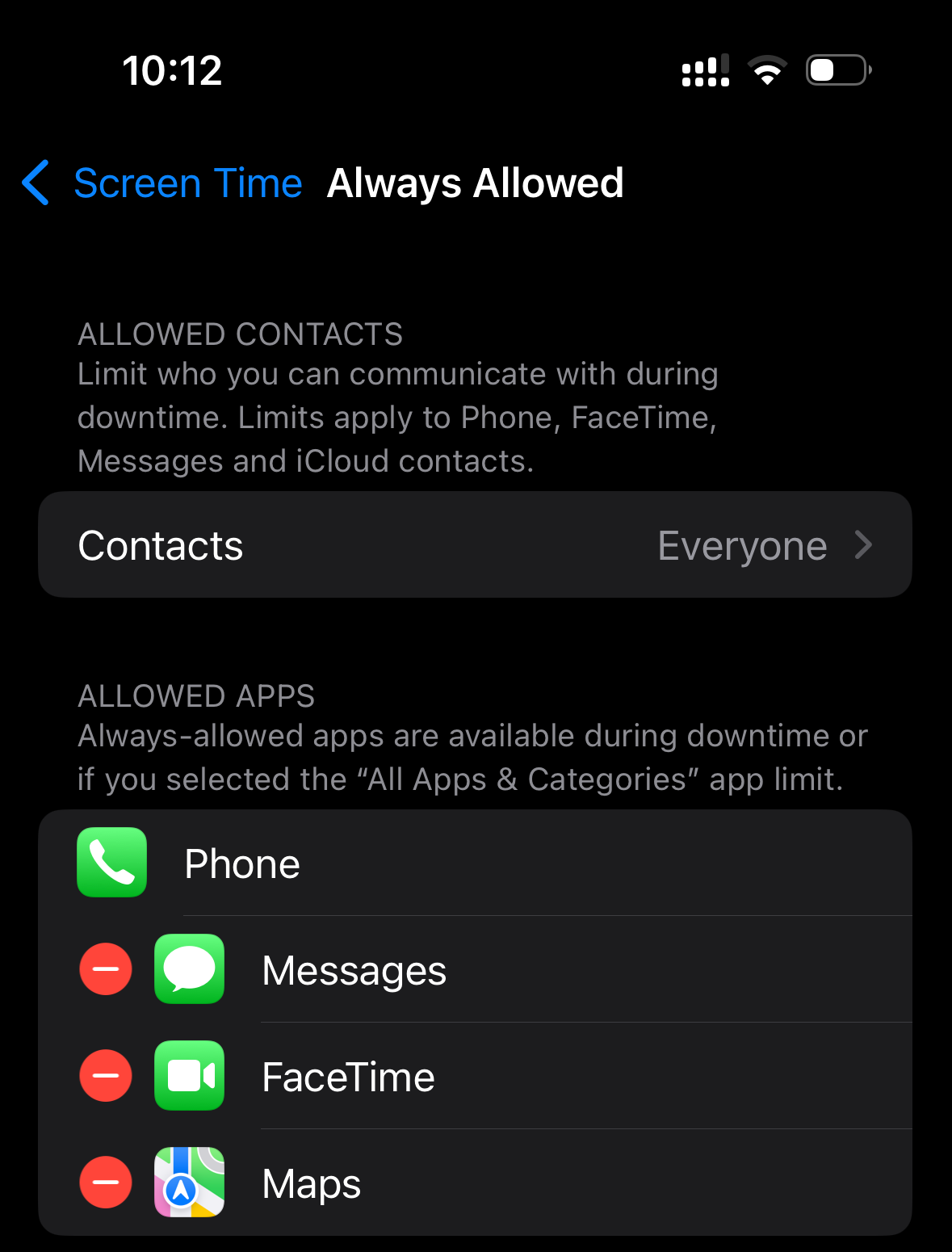
5. Review the Always Allowed list
Always Allowed does what its name suggests.
An app on this list can remain available during Downtime. That is useful for Phone, Messages, Maps, medication reminders, accessibility tools, and other essentials. It is less useful when TikTok was added during a temporary exception and never removed.
Go to: SettingsScreen TimeAlways Allowed
Review each app. Keep what you genuinely need and remove what is defeating the point of the schedule.
6. Block the website version as well as the app
Blocking the Instagram app does not help if you open Instagram in Safari 20 seconds later.
App Limits and website restrictions solve different parts of the problem. If a distracting service remains accessible through a browser, add its website to your restrictions.
SettingsScreen TimeContent & Privacy RestrictionsApp Store, Media, Web, & GamesWeb Content
Apple’s current route for restricting a specific website is:
- Open Settings.
- Tap Screen Time.
- Tap Content & Privacy Restrictions and turn it on.
- Tap App Store, Media, Web, & Games.
- Tap Web Content.
- Select Limit Adult Websites.
- Under Never Allow, add the specific website URL.5
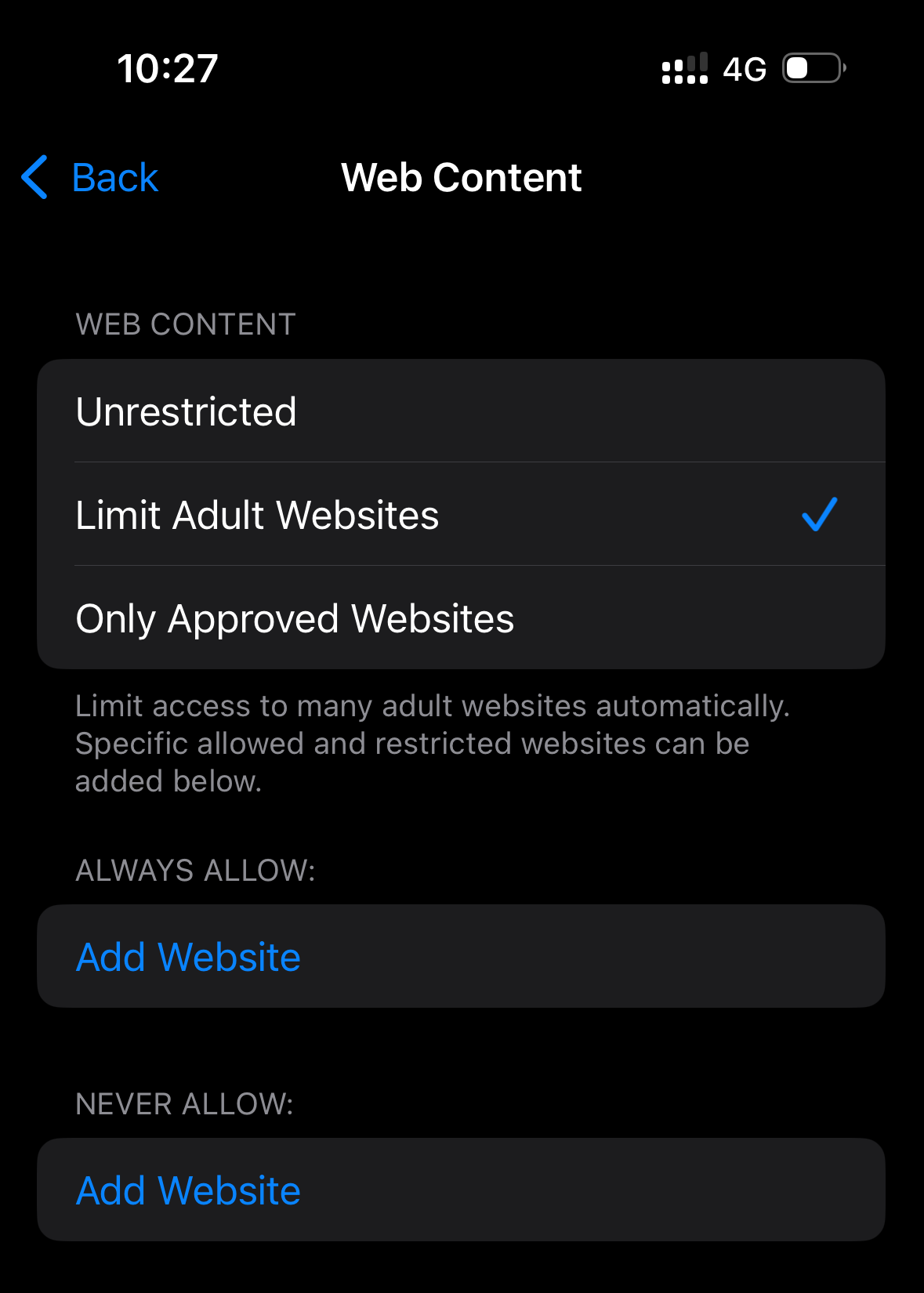
The name “Limit Adult Websites” makes this setting sound unrelated, but the same menu allows specific URLs to be added to Never Allow.
Add the main domain and test it in every browser you use. If the service uses several domains, mobile sites, or embedded pages, one URL may not cover every route.
7. Check Share Across Devices
Your iPhone may not be the only device contributing to Screen Time.
When Share Across Devices is enabled, Apple can sync Screen Time schedules, limits, and usage information across an iPhone, iPad, and Mac signed in to the same Apple Account.2
This can create two kinds of confusion:
- Your reported usage appears much higher because time from several devices is combined.
- A limit seems to activate earlier than expected because the available time is being used elsewhere.
Open: SettingsScreen TimeShare Across Devices
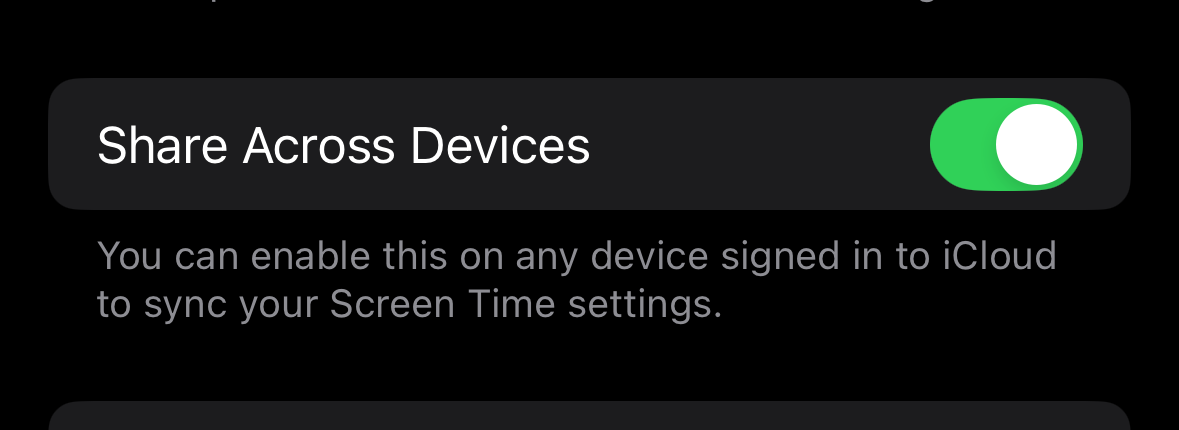
Turn it on if you want one limit to follow you across your Apple devices. Turn it off if you deliberately want separate tracking and rules on each device.
Neither choice is universally correct. The important thing is knowing which one you selected.
If YouTube is blocked on your phone but remains open on your school laptop, an iPhone-only limit may never solve the complete distraction problem. In that case, a cross-device blocker may be more appropriate.
8. Set the date and time automatically
Downtime depends on your phone knowing when the scheduled period begins.
Go to: SettingsGeneralDate & Time
Turn on Set Automatically. Apple recommends this setting so the device can use the correct date, time, and time zone.6
Check this after traveling, changing time zones, restoring a device, or noticing that Downtime begins at the wrong hour.
If Set Automatically is unavailable, Apple recommends checking your internet connection, software version, and settings that may prevent the time zone from being changed.6
9. Restart, update, and recreate the limit
If the setup is correct but the limit still does not apply, treat it as a software problem.
Try these steps in order:
- Turn the affected App Limit off and back on.
- Restart the iPhone.
- Open
SettingsGeneralSoftware Updateand install an available iOS update.7 - Delete the affected limit and recreate it for one app.
- Test the new limit for one minute.
- If necessary, document your existing setup and then turn App & Website Activity off and back on.
If settings repeatedly disappear, fail to sync, or behave differently across family devices, contact Apple Support. A third-party blocker can give you a different system, but it cannot repair a fault inside your Apple Account or Family Sharing configuration.
What if Screen Time works, but you still override it?
If the warning appears at the correct time and you press “Ignore Limit,” the problem is no longer technical.
The system is working. It is simply asking you to enforce your own rule at the moment you most want to break it.
You have several options:
- Ask someone you trust to control the Screen Time passcode.
- Use Downtime with a carefully prepared Always Allowed list.
- Choose a dedicated app blocker with stricter sessions.
- Put a task, consequence, or physical barrier between you and the app.
For a comparison of those approaches, read The 8 Best App Blockers for Students in 2026.
StudyIn takes a more specific approach for students preparing for supported exams. You choose the distracting apps, complete a study session, and answer questions based on your selected exam, module, and topic. Pass, and the apps open for a defined break. Fail, and the shield stays up.
StudyIn is not a fix for broken Screen Time settings.
StudyIn is an alternative for students who consistently override their Screen Time limits and need a more structured approach to studying. It is currently available on iPhone and includes a seven-day free trial. Support for new exams is being added over time. Students should confirm that their exam and subject are supported before subscribing.
When should you stop troubleshooting Screen Time?
Screen Time is free, already installed, and sufficient for many people. You do not need to replace it because another blocker has more features.
Replace or supplement it when you can identify the specific problem that another system solves.
| Your situation | Best next step |
|---|---|
| The limit is incorrectly configured | Repair the Screen Time setup |
| Notifications are the main distraction | Use Focus mode and notification controls |
| You want a free daily allowance | Continue using App Limits |
| You want apps unavailable during scheduled study hours | Use Downtime and Block at Downtime |
| You know the passcode and keep changing the rules | Give the passcode to someone you trust |
| Distractions move between your phone and computer | Use a cross-device blocker |
| You need stricter general blocking | Compare dedicated app blockers |
| You are preparing for a supported exam and want earned access | Consider StudyIn |
| Settings fail after troubleshooting | Contact Apple Support |
- Your situation
- The limit is incorrectly configured
- Best next step
- Repair the Screen Time setup
- Your situation
- Notifications are the main distraction
- Best next step
- Use Focus mode and notification controls
- Your situation
- You want a free daily allowance
- Best next step
- Continue using App Limits
- Your situation
- You want apps unavailable during scheduled study hours
- Best next step
- Use Downtime and Block at Downtime
- Your situation
- You know the passcode and keep changing the rules
- Best next step
- Give the passcode to someone you trust
- Your situation
- Distractions move between your phone and computer
- Best next step
- Use a cross-device blocker
- Your situation
- You need stricter general blocking
- Best next step
- Compare dedicated app blockers
- Your situation
- You are preparing for a supported exam and want earned access
- Best next step
- Consider StudyIn
- Your situation
- Settings fail after troubleshooting
- Best next step
- Contact Apple Support
The right question is not “What is the strictest blocker?” It is “What is the lightest system I will not repeatedly defeat?”
Frequently asked questions
Why can I still press “Ignore Limit” on my iPhone?
Apple states that Screen Time limits can be ignored by default. A limit may therefore be acting as a reminder instead of a hard block. Lock Screen Time settings with a separate passcode and review the blocking options available for App Limits and Downtime.
How do I remove “Ignore Limit for Today”?
Start by creating a Screen Time passcode and enabling the available blocking controls. For a scheduled period, turn on Block at Downtime. The exact buttons shown after an App Limit expires can vary according to the device setup, account type, passcode, and current version of iOS.
Why does my Screen Time limit not block an app?
Check that App & Website Activity is on, the correct app is included, the app is not Always Allowed, and the relevant blocking option is enabled. Test the app with a new one-minute limit to separate a configuration problem from a broader software issue.
What is the difference between App Limits and Downtime?
App Limits control how much time you can spend in selected apps or categories each day. Downtime makes most apps unavailable during a scheduled period while allowing selected essentials to remain accessible.
Why is Screen Time showing the wrong amount of usage?
Share Across Devices may be combining activity from your iPhone, iPad, and Mac. Screen Time can also group apps into categories that make the report look different from the way you mentally divide your usage.
Do Screen Time limits reset every day?
App Limits are daily allowances. Check any customized day-by-day settings if the limit behaves differently on weekends or particular weekdays.
Can I block a website as well as an app?
Yes. Specific websites can be added under Screen Time’s web-content restrictions. Test the main URL and any alternative browser routes you normally use.
Can someone bypass a Screen Time passcode?
A passcode prevents casual settings changes, but no self-managed consumer tool should be described as impossible to bypass. Protect the recovery details, use a code the restricted user does not know, and keep the device and Apple Account secure.
What should I do if my Screen Time settings keep disappearing?
Restart the device, install available iOS updates, and recreate one test limit. If the problem continues—especially across Family Sharing devices—contact Apple Support rather than repeatedly rebuilding the same setup.
Is Screen Time enough to stop me from using my phone while studying?
It can be. If you respect the limit, Screen Time is a free and effective boundary. If you repeatedly override it, use a trusted passcode or choose a system that adds more friction. Our broader guide explains seven ways to stop using your phone while studying.
Fix the setting before replacing the system
Begin with the simplest explanation.
Make sure Screen Time is active. Check the app. Protect the settings. Turn on blocking. Cover the website. Verify the schedule and devices. Then test one limit for one minute.
If the limit still fails, troubleshoot the software.
If the limit works and you keep overriding it, stop calling it a technical problem. You need a boundary designed for what you actually do—not what you hope you will do when the warning appears.
Sources
- Apple. “Set schedules with Screen Time on iPhone.” Apple notes that Screen Time limits can be ignored by default and explains how Block at Downtime changes the behavior. Accessed August 2026. ↩
- Apple. “Get started with Screen Time on iPhone.” Includes App & Website Activity and Share Across Devices. Accessed August 2026. ↩
- Apple. “Create, manage, and keep track of a Screen Time passcode.” Accessed August 2026. ↩
- Apple. “If you forgot your Screen Time passcode.” Accessed August 2026. ↩
- Apple. “Block apps, app downloads, websites, and purchases on iPhone.” Accessed August 2026. ↩
- Apple. “If you can’t change the time or time zone on your Apple device.” Accessed August 2026. ↩
- Apple. “Update your iPhone or iPad.” Accessed August 2026. ↩